Google Images makes it incredibly easy to find a picture.
Type in what you’re looking for, and suddenly you’ve got hundreds—or thousands—of possibilities.
But there’s one very important thing to understand:
Finding an image on Google does not automatically give you permission to use it.
Google Images is a search tool, not a giant library of copyright-free images. Fortunately, Google gives you tools that can help narrow your search based on usage rights—but there’s still another step you shouldn’t skip.
📺 Watch the video below
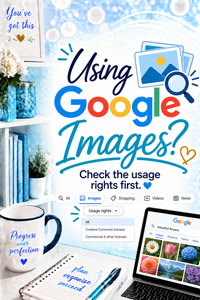
Google Images Helps You Find Images
When you search Google Images, Google is finding images that appear on websites across the internet.
Those images can come from businesses, photographers, museums, stock-image companies, news organizations, blogs, government websites, and countless other sources.
The fact that Google can show you an image doesn’t tell you whether you’re allowed to download it and use it in your own content.
That’s why simply finding the perfect image isn’t enough.
Use the Usage Rights Filter
Google Images provides a Usage rights option under its search tools.
One of the options you may see is Creative Commons licenses.
Selecting that option can help narrow your results to images Google has identified as having associated licensing information.
But here’s the part that’s easy to misunderstand:
Selecting Creative Commons licenses does not automatically mean every image in your results is free for you to use however you want.
It’s a filter to help with your search—not a permission slip.
What Does “Licensable” Mean?
You may see an image in Google Images labeled Licensable.
That doesn’t necessarily mean, “Go ahead, use this for free.”
It means licensing information is associated with that image.
You still need to investigate what that license actually allows.
Depending on the image and its license, there may be requirements or restrictions involving attribution, commercial use, modifications, or other types of use.
So don’t stop at the word Licensable.
Click Through to the Original Source
This is the step I don’t want you to skip.
Once you find an image you’re considering using, visit the source website and look at the licensing information for that specific image.
Don’t rely solely on the label you see in Google Images.
The source may provide more information about the license, attribution requirements, or restrictions on how the image can be used.
If you plan to use an image commercially, make sure the applicable terms allow the kind of use you have planned.
What If It Says Public Domain?
You may also encounter images identified by their source as being in the public domain.
Public-domain works are generally not restricted by copyright, but it’s still smart to verify the information at the source rather than assuming based solely on a Google Images result.
There can also be considerations beyond the copyright status of the underlying work, including website terms, trademarks, privacy or publicity rights, or restrictions related to a particular reproduction or use.
And this is where I remind you that we’re learning how to use a technology tool—not trying to earn a surprise law degree from Google University. 😂
When in doubt about whether you have permission for a particular commercial use, get appropriate guidance or choose an image with clear terms you understand.
What About AI-Generated Images?
Seeing that an image was created with AI doesn’t automatically answer the question of whether you have permission to use it.
An AI platform, image provider, or website may have its own terms governing the image and its use. Other rights can potentially be relevant depending on what’s depicted and how you intend to use it.
Again, go back to the source and check the applicable terms rather than assuming AI-generated = free for everybody.
Remember This One Rule
If you remember nothing else from this tutorial, remember this:
Google Images helps you FIND images. It doesn’t give you permission to USE them.
Use Google’s filters to help narrow your search.
Then click through.
Check the source.
Read the applicable licensing information.
And make sure you understand what you’re allowed to do with the image before putting it into your own content.
It takes an extra minute, but that’s a much better habit than assuming every image you can find online is yours for the taking.
That’s not fear of technology.
That’s using technology confidently and responsibly. 💙