Have you ever been reading something on your phone and come across a word you didn’t recognize?
Maybe you’re reading an article, following a Bible study, or looking through instructions for something new. You understand most of what you’re reading, but there’s that one word that makes you stop.
You could leave the app, open your browser, type the word into a search engine, and then return to what you were doing.
But there’s often a much easier way.
Many smartphones let you select a word and look up its meaning right from the app you’re using.
It’s one of those simple features that’s easy to miss if nobody has ever shown you.
I was recently helping my Bible study group when I demonstrated this trick. It was a great reminder that sometimes the most useful technology lessons aren’t about complicated software. They’re about discovering something your phone could already do.
Let’s walk through how it works.
📺 Watch the video below
The Simple Trick: Touch and Hold a Word
The basic idea is the same on many iPhones and Android phones.
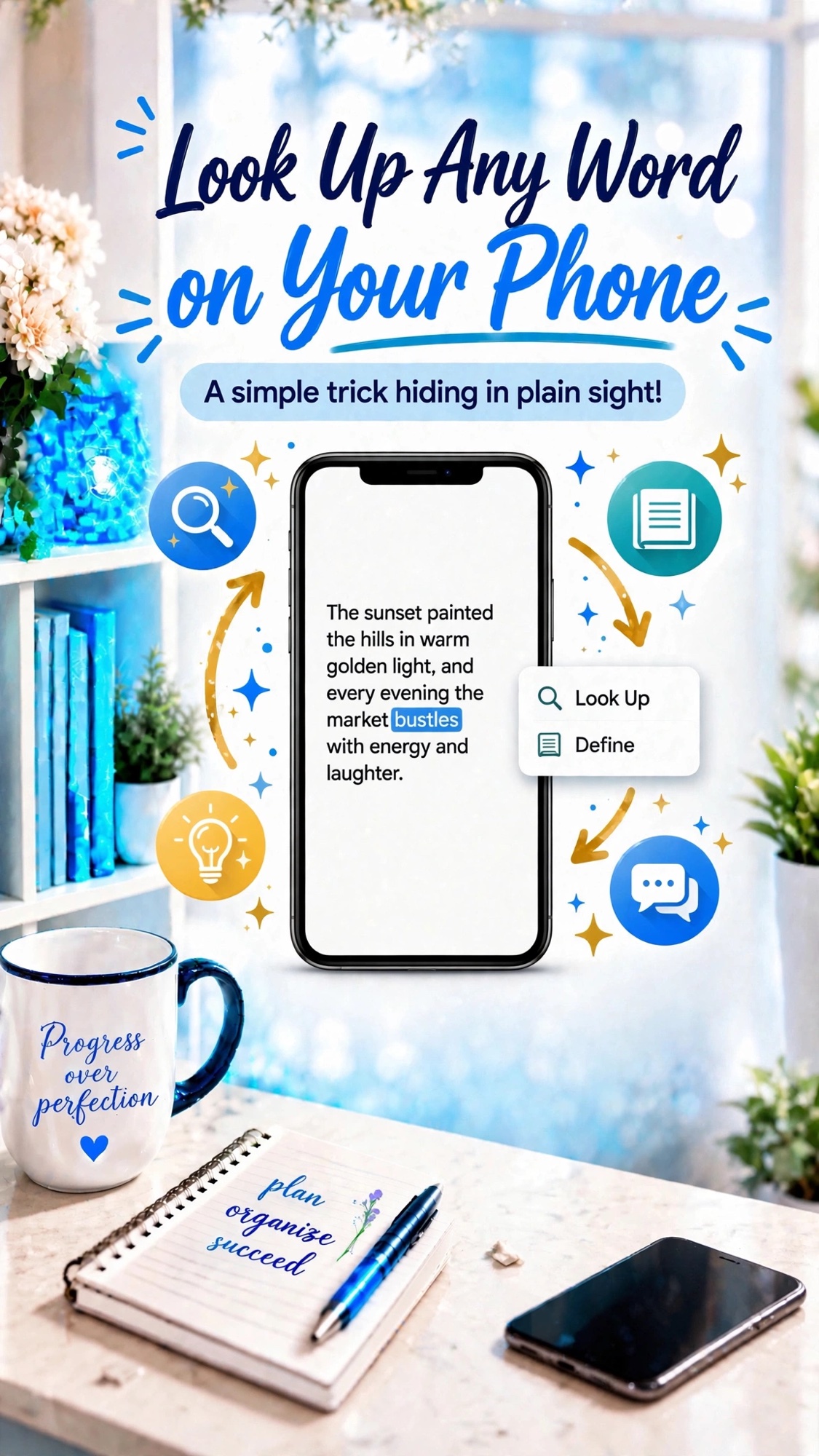
When you’re reading text in an app that supports text selection, you can often touch and hold a word to highlight it.
Once the word is selected, your phone displays a small menu with available actions.
Depending on your device, those actions might include copying the word, sharing it, searching for it, or looking up its meaning.
You don’t need to press hard. Just place your finger on the word and hold it there briefly.
That’s it.
The next step depends on whether you’re using an iPhone or an Android phone.
How to Look Up a Word on an iPhone
If you have an iPhone, Apple includes a feature called Look Up.
Here’s how to try it:
- Open an app that contains selectable text, such as an article in Safari or a reading app that supports text selection.
- Find a word you’d like to understand.
- Touch and hold the word until it’s highlighted.
- Look at the menu that appears.
- Tap Look Up. If you don’t see it immediately, you may need to tap the arrow or additional menu options.
- Review the definition or other information your iPhone provides.
Depending on the word and your settings, Look Up may display dictionary definitions, suggested information, or other results.
When you’re finished, close the results and return to your reading.
Helpful tip: If Look Up doesn’t appear, first check whether the word is actually selected. Some apps have their own menus or don’t allow normal text selection.
How to Look Up a Word on an Android Phone
Android phones can do something similar, although the options aren’t always identical.
That’s because Android is used by several phone manufacturers, including Samsung and Google, and the available menus can vary by device, Android version, and app.
Here’s how to try it:
- Open an app with text you can select.
- Find a word you want to understand.
- Touch and hold the word until it’s highlighted.
- Look at the menu that appears.
- Check for an option such as Define, Dictionary, Web search, or Search.
- Choose the available option that helps you find the word’s meaning.
On some Android phones, you may get a dictionary definition directly. On others, the phone may offer to search the web for the selected word.
You might also need to tap the three-dot menu to see additional options.
The important thing to remember: If your Android phone doesn’t show exactly the same menu as someone else’s, that doesn’t mean you’re doing anything wrong.
The feature varies across phones and apps.
Does This Work in Every App?
Not necessarily.
This trick depends on whether the app allows you to select its text.
For example, you may be able to select words in a web article, an email, or a reading app. But some apps display text in a way that doesn’t support normal selection.
A word that’s part of a picture usually can’t be selected with the same touch-and-hold method.
Some apps also have their own built-in dictionary or reading tools, so the menu may look different.
If nothing happens when you touch and hold a word, try the trick in a different app before deciding your phone doesn’t support it.
A webpage with ordinary text is often a good place to experiment.
Why This Little Phone Trick Is So Useful
This isn’t a complicated feature, and that’s exactly why I like teaching it.
Think about the little interruptions that happen when you’re reading.
You find a word you don’t recognize. You stop reading, open another app, search for the meaning, and then try to find your place again.
That may only take a minute, but it interrupts what you were doing.
Being able to select a word and look it up makes the process simpler.
Here are a few situations where it can come in handy.
Reading and Bible Study
If you’re reading a passage or study material and encounter an unfamiliar word, you may be able to look it up without navigating away from your reading.
That’s how this tip came up with my own Bible study group.
Reading News and Articles
News articles sometimes include technical, medical, financial, or unfamiliar terms.
Instead of skipping a word or guessing what it means, you can look it up.
Learning Something New
Maybe you’re reading instructions for a new hobby, researching a purchase, or learning about a topic you haven’t explored before.
Looking up unfamiliar words as you go can make the information easier to understand.
Everyday Curiosity
Sometimes you simply see a word and think, I wonder what that means.
You don’t need a special reason to be curious.
And you certainly don’t need to pretend you already know the answer.
A Small Detail That Makes a Big Difference
When I teach phone tips, I try to use the phrase touch and hold rather than hard press.
Why?
Because you’re not trying to push harder on the screen.
You’re simply keeping your finger in place for a moment.
Pressing harder isn’t necessary, and it can make a simple instruction sound more complicated than it is.
So remember:
Touch. Hold. Select. Look up.
Four small actions that can make reading on your phone easier.
What If You Don’t See a Definition?
If you try this and don’t immediately get a dictionary definition, don’t give up.
Try these simple checks:
- Make sure the word is highlighted.
- Look for an arrow or three-dot menu with more options.
- Try a different app that supports selecting text.
- On Android, look for a search option if a dictionary option isn’t available.
- Remember that your phone’s menu may differ from the one shown in a tutorial.
You don’t need to change a bunch of phone settings just to experiment with this tip.
Start with an ordinary word in an ordinary webpage and see what your phone offers.
Frequently Asked Questions
- Can I look up words this way on both iPhone and Android?
Yes, both types of phones can offer ways to look up selected text. However, the available menu options vary. iPhones commonly offer Look Up, while Android phones may offer Define, Dictionary, Search, or Web search.
- Do I need to download a dictionary app?
Not necessarily. iPhones have a built-in Look Up feature, and many Android devices provide dictionary or search options when text is selected. The exact experience depends on your device.
- Why doesn’t anything happen when I hold my finger on a word?
The app may not allow text selection, or you may need to hold your finger a little longer. Try selecting a word on a regular webpage to see whether the feature works there.
- Can I look up an entire phrase instead of one word?
Often, yes. After selecting a word, you may be able to drag the selection handles to include more text. The available lookup or search options depend on your phone and the app.
- Will this work on words inside a picture?
Not with ordinary text selection alone. Some phones have separate features that recognize text in images, such as Apple’s Live Text or Google Lens, but those are different tools.
Build Your Tech Confidence One Small Skill at a Time
You don’t have to master every feature on your phone to become more confident using it.
Sometimes all it takes is learning one little trick that makes something you already do a bit easier.
The next time you come across an unfamiliar word, try touching and holding it.
See what options your phone gives you.
You may discover a useful feature that’s been there all along.
And that’s what Tech Confidence with Karrie is about: making technology simple, practical, and a little less intimidating, one skill at a time.