Have you ever opened a file and realized something important had changed?
Maybe you accidentally deleted information. Maybe you updated a number and later realized the original was correct. Or maybe you simply want to see what your work looked like before you made changes.
I’ve spent years being the person coworkers turn to when something goes wrong with a file.
Throughout my career, working as an analyst, designing solutions and bots, and integrating software systems, I’ve often been the unofficial technology person everyone comes to for help.
And I can’t tell you how many times I’ve looked like a hero simply because I knew how to find an earlier version of someone’s work.
In some workplaces, that meant using server backups or Windows Previous Versions. Those tools aren’t the same as Google Sheets Version History, but they address a similar problem: getting back information you thought was gone.
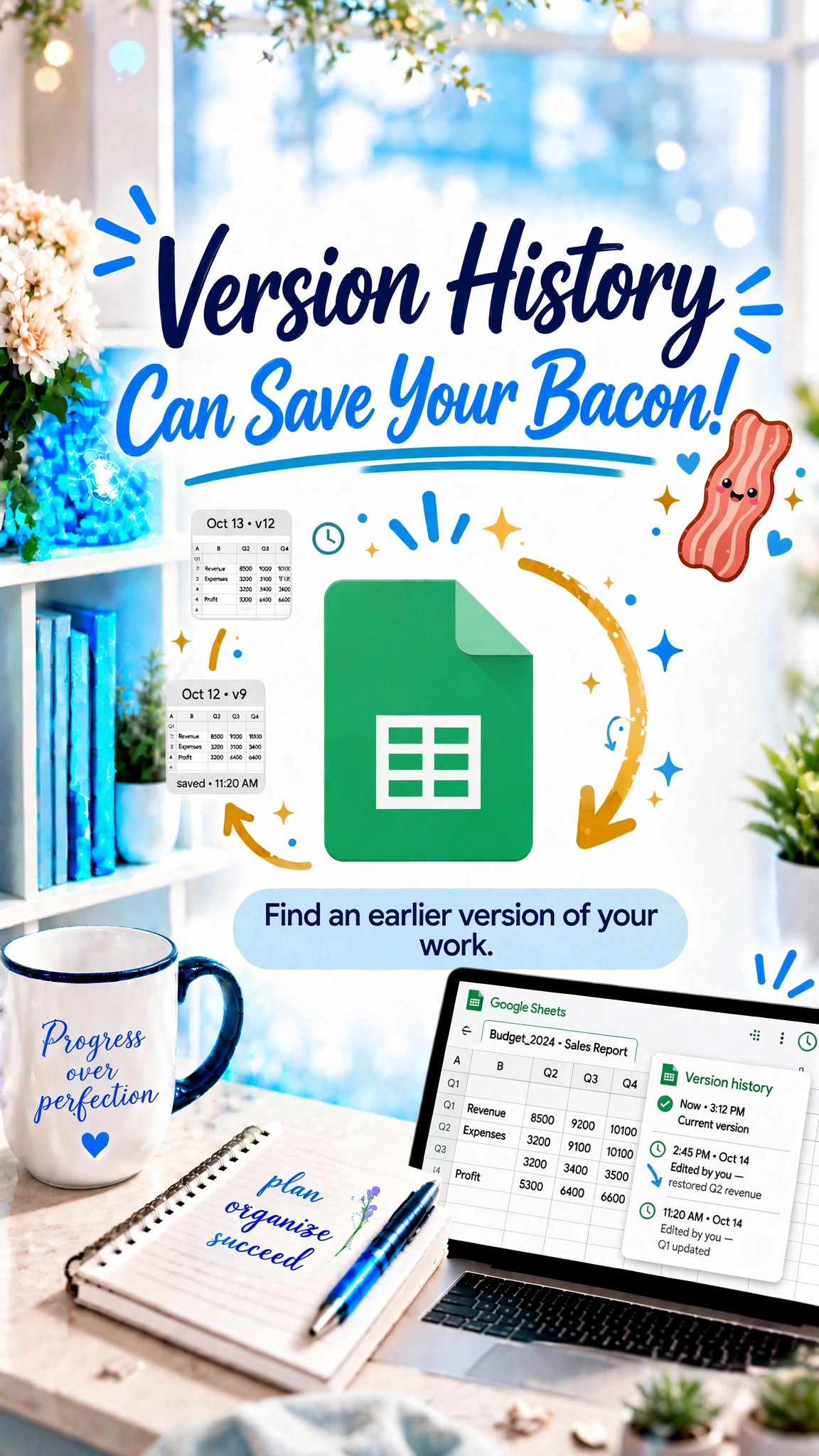
Today, Google Sheets has its own built-in Version History feature.
And knowing how to use it just might save your bacon.
📺 Watch the video below
What Is Version History in Google Sheets?
Version History is a feature that lets you look back at earlier saved versions of a spreadsheet.
As you work in Google Sheets, your changes are saved automatically. Version History gives you a way to review how the spreadsheet looked at different points in time.
That means you may be able to find information that was changed, replaced, or deleted from a cell.
You can also restore an earlier version of the spreadsheet if you need to.
Think of it as a way to look back at the history of your work.
It’s not quite the same thing as a backup system, but it can be incredibly useful when you need to revisit previous changes.
Why Would You Need Version History?
Let’s use an everyday example.
Imagine you have a Google Sheet where you keep track of inventory.
Your spreadsheet includes product names, quantities, and prices.
One afternoon, you update an inventory item. Later, you realize you changed the wrong number.
Now you need the original information.
You could try to remember what it said. You could search through your notes. You could even ask someone else whether they remember the number.
Or you could check Version History.
That’s the kind of situation where knowing this feature exists can make your day a whole lot easier.
And inventory is only one example.
You might use Version History when:
- You accidentally replace information in a spreadsheet.
- You delete something from a cell and later need it back.
- You want to compare today’s spreadsheet with an earlier version.
- Someone else edits a shared spreadsheet and you want to understand what changed.
- You realize that a previous version contained information you still need.
The point isn’t that mistakes will never happen.
It’s that you have options when they do.
How to Find Version History in Google Sheets
Let’s walk through the process.
Step 1: Open Your Google Sheet
Start by opening the Google Sheet you want to review.
If your spreadsheet is stored in Google Drive, you can find it there and open it.
You’ll see your spreadsheet with its rows, columns, and cells.
Step 2: Open the File Menu
At the top of Google Sheets, click File.
This opens a menu with several options.
Look for Version history.
Step 3: Choose See Version History
Click Version history, then select See version history.
Google Sheets will open a view that shows earlier versions of your spreadsheet.
You’ll typically see a list of versions organized by date and time on the right side of the screen.
Depending on the spreadsheet and its history, some versions may be grouped together.
Step 4: Review an Earlier Version
Click one of the earlier versions in the list.
Google Sheets will show you what the spreadsheet looked like at that point.
This is where the feature becomes especially useful.
You can compare the earlier information with what you have now and look for the value or change you’re trying to find.
For example, if you changed the quantity of an inventory item, you may be able to see the earlier quantity.
You don’t have to restore anything just to look.
Sometimes reviewing the older version is all you need.
Step 5: Restore a Previous Version if Necessary
If you decide you need to return the spreadsheet to an earlier state, select the version you want and choose Restore this version.
Google Sheets will ask you to confirm.
Once you restore it, the spreadsheet returns to the selected earlier version.
But there’s something important you need to understand before clicking that button.
Important: Restoring a Version Affects the Whole Spreadsheet
This is probably the most important thing I want you to remember.
When you restore a previous version in Google Sheets, you’re restoring the entire spreadsheet to that earlier point in time.
You’re not just undoing one changed cell.
Let’s go back to our inventory example.
Suppose you changed the quantity of one item yesterday.
But since then, you’ve also added three new products, updated several prices, and made other changes.
If you restore yesterday’s earlier version, those later changes may no longer appear in the current version of the spreadsheet.
That’s why it’s worth taking a moment to think before restoring.
If you only need to find one old number, you may be better off reviewing the earlier version and copying the information you need into the current spreadsheet.
You can also make a copy of your current spreadsheet before restoring an older version, so you have another reference point.
The goal is to recover the information you need without accidentally losing other work.
Is Version History the Same as Undo?
Not exactly.
Undo is useful when you’ve just made a change and want to reverse it.
For example, you type the wrong number into a cell and immediately notice your mistake.
Version History is different.
It’s especially helpful when you want to look back at an earlier saved state of the spreadsheet, perhaps after you’ve made several changes or closed and reopened the file.
Here’s a simple way to remember the difference:
Undo: I just made a mistake.
Version History: I need to see what this spreadsheet looked like earlier.
Both are useful, but they serve different purposes.
Does Version History Work in Other Programs?
Yes, although the steps can be different.
Google Docs and Google Slides also have Version History features.
Microsoft OneDrive supports version history for eligible files stored there, and Microsoft 365 applications have their own ways to review previous versions.
If you’ve worked with files on a company network, you may also be familiar with Windows Previous Versions or server backups.
Those systems aren’t all technically identical, and they don’t necessarily store or restore information the same way.
But the broader lesson is worth remembering:
Before you assume an earlier version of your work is gone, check whether the program or storage service has a way to retrieve it.
That little bit of knowledge has made me look like a hero more times than I can count.
What If You Deleted the Entire File?
This is an important distinction.
Version History helps you review earlier versions of a file that still exists.
If you deleted the entire Google Sheet, you generally need to look in Google Drive’s Trash instead.
Recovering a deleted file and restoring an earlier version of an existing file are two different tasks.
So if you can’t find the spreadsheet at all, start by checking Google Drive’s Trash.
If you can open the spreadsheet but need older information from inside it, check Version History.
Frequently Asked Questions
Does Google Sheets save my changes automatically?
Yes. Google Sheets automatically saves your changes as you work, provided it can synchronize them appropriately. You generally don’t need to click a traditional Save button.
Can I look at an old version without restoring it?
Yes. You can open Version History and review earlier versions without immediately changing your current spreadsheet.
Can I restore just one cell using Version History?
Restoring a previous version restores the spreadsheet as a whole, not an individual cell. If you only need one earlier value, consider reviewing the old version and copying the information you need instead.
Can anyone see Version History?
Access depends on your permissions. In general, you need editing access to view a Google file’s version history.
Is Version History the same as a backup?
No. Version History is a feature for reviewing and restoring earlier saved states of a file. A dedicated backup system can offer different protections, retention policies, and recovery options.
Both can be useful, but they aren’t interchangeable.
One Small Feature That Can Make a Big Difference
One thing I’ve learned over the years is that you don’t have to know every technology feature to be good with technology.
Sometimes you just need to know that a helpful option exists.
Version History is one of those options.
You may go months without needing it.
But the day you accidentally change something important, knowing where to look can save you a lot of frustration.
And you don’t need to be the office technology expert to use it.
Open your Google Sheet, go to File → Version history → See version history, and take a look at what’s available.
You might be surprised at what you can find.
That’s what Tech Confidence with Karrie is all about: making technology simpler, one practical skill at a time.
Because sometimes saving the day doesn’t require a complicated solution.
Sometimes it just requires knowing where to click.
And yes, sometimes it really can save your bacon. 🥓