Have you ever seen a beautiful social media graphic, invitation, flyer, or presentation and wondered how someone made it?
Maybe you’ve heard people talking about Canva but haven’t tried it because you’re not sure what it actually does.
Or maybe you’ve opened Canva, looked at all the choices, and thought, “Okay, but where am I supposed to start?”
If that sounds familiar, you’re exactly who this article is for.
Canva is a design tool that makes it easier to create visual content, even if you’ve never considered yourself creative or tech-savvy.
And you don’t need to learn every feature to start using it.
Today, we’re starting with the basics: what Canva is, what you can make with it, how templates work, and what you need to know before creating your first design.
📺 Watch the video below
What Exactly Is Canva?
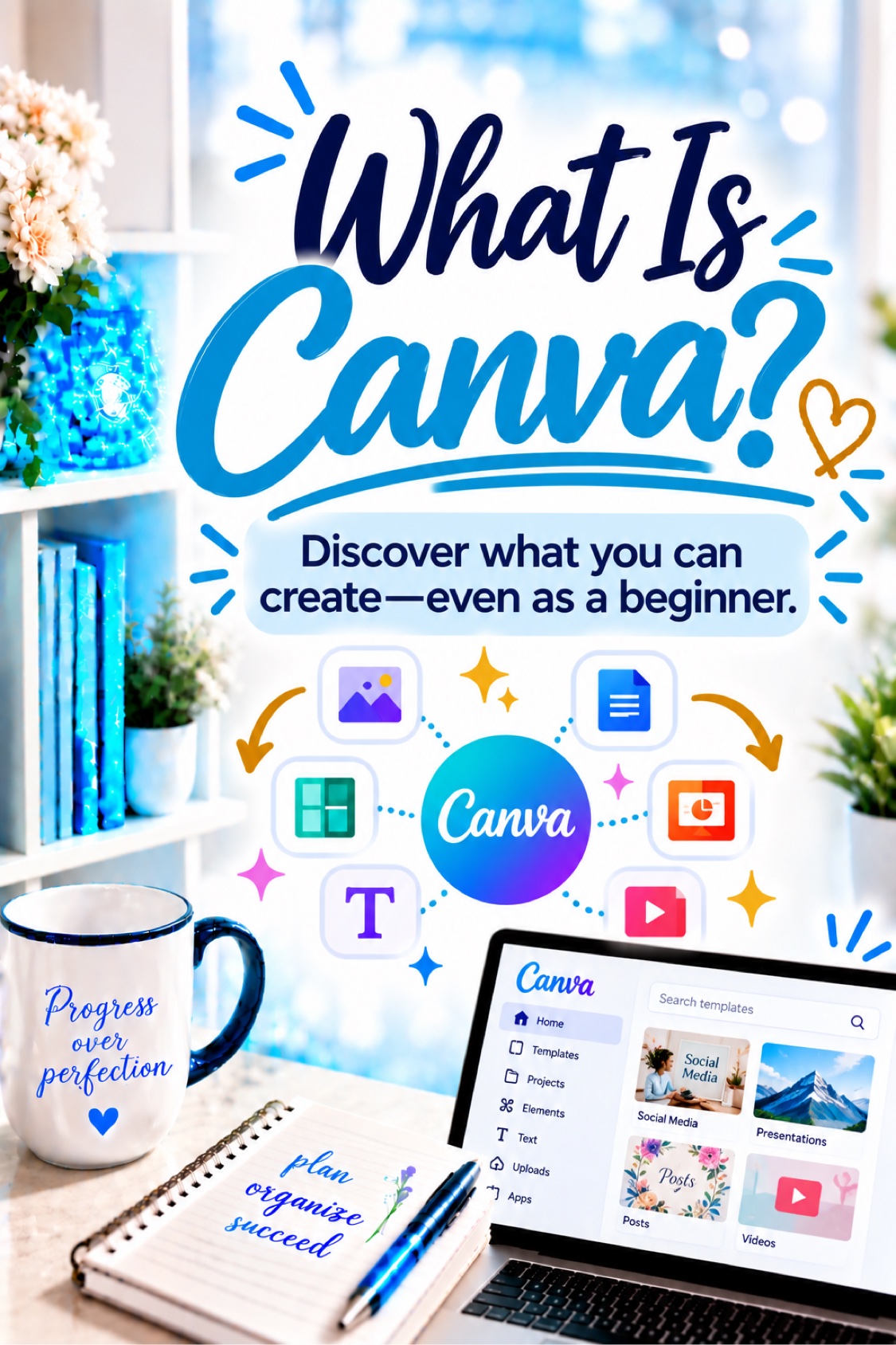
Canva is an online design platform that helps you create graphics, documents, presentations, videos, and other visual materials.
Think of it as a place where you can put together words, pictures, colors, and design elements to create something that looks polished.
You can use Canva in a web browser on your computer, and there are also Canva apps for computers and mobile devices.
You don’t have to download complicated professional design software to begin.
For example, suppose you want to make a birthday invitation.
You could open Canva, choose an invitation template, replace the sample wording with your own details, change the colors if you want, and download the finished invitation.
You don’t have to draw everything yourself.
You don’t have to know how to create a layout from scratch.
And you definitely don’t need a degree in graphic design.
That’s part of what makes Canva approachable for beginners.
What Can You Make With Canva?
This is where people sometimes get surprised.
Canva isn’t just for social media graphics.
There are many everyday and business uses for it.
Social Media Graphics
You can create images for Facebook, Instagram, Pinterest, and other social platforms.
For example, you might make a graphic announcing a sale, sharing a favorite quote, or promoting an upcoming event.
Canva offers designs in different sizes so you don’t have to guess what dimensions to use.
Invitations and Greeting Cards
Planning a birthday party, baby shower, family gathering, or holiday event?
You can make invitations, greeting cards, and announcements.
Start with a design you like, change the details, and make it your own.
Flyers and Signs
Canva can help you create flyers for community events, fundraisers, small businesses, and other activities.
You can also make signs, labels, and other materials you might want to print.
Presentations
Need to explain something to a group?
Canva lets you build presentations using slides with text, images, and other visual elements.
You might use one for a meeting, a class, a workshop, or a family project.
Business Materials
If you run a business, Canva can help you create business cards, promotional graphics, simple marketing materials, and branded designs.
You can use consistent colors and fonts so your materials look like they belong together.
Videos
Yes, Canva can work with video, too.
You can combine video clips, images, text, and music to make simple videos.
You don’t need to learn the video features on your first day, though. Start with something easier, like a single graphic.
Documents and Printables
You can also create worksheets, checklists, planners, menus, and other documents.
For example, if you’re organizing a family event, you might create a checklist or printable schedule.
The point is that Canva can be useful for both personal projects and business tasks.
You don’t have to be a content creator to have a reason to use Canva.
What Is a Canva Template?
One of Canva’s most helpful features for beginners is its collection of templates.
A template is a design someone has already started for you.
It may include a layout, colors, fonts, pictures, and sample wording.
You choose a template you like and customize it.
Let’s say you want to make a flyer for a neighborhood event.
Instead of staring at a completely blank page, you could search Canva’s templates for a flyer.
You might find one with a headline at the top, an image in the middle, and event details near the bottom.
Then you replace the sample information with your own.
You can change the words, pictures, colors, and other elements.
A template is a starting point, not something you’re required to keep exactly as it is.
And here’s something I want beginners to remember: using a template isn’t cheating.
It’s using a tool to make the job easier.
You still decide what you want to communicate and how you want the finished design to look.
Is Canva Free?
Canva has a free version, along with paid plans that provide additional features and content.
You can accomplish quite a bit with the free version.
For example, you can create designs, use many templates and design elements, upload your own pictures, and download finished projects.
Some templates, photos, graphics, and features are available only with a paid plan.
When you’re browsing Canva, you may notice a crown symbol or another indication that something is premium.
That means the item or feature may require a paid subscription or another payment option.
If you’re just learning Canva, I recommend starting with the free version.
Learn how to create a design, edit text, replace a picture, and download your work.
Then, if you eventually discover that a paid feature would genuinely save you time or give you something you need, you can decide whether it’s worth the cost.
You do not need to buy every feature just because it’s available.
How Do You Get Started With Canva?
You can begin by visiting canva.com and creating an account.
Once you’re signed in, you’ll see options for creating designs and searching for templates.
Here’s a simple way to approach your first project.
Step 1: Decide What You Want to Make
Don’t start by exploring every feature Canva offers.
Start with a purpose.
Maybe you want a birthday invitation, a Facebook graphic, or a flyer.
Knowing what you’re making gives you a much clearer place to begin.
Step 2: Find a Template
Search for the type of design you want.
Look through the available templates and choose one that feels close to what you have in mind.
Don’t worry about finding the perfect one.
You’re going to customize it anyway.
Step 3: Change the Words
Click or tap the sample text and replace it with your own.
For a birthday invitation, that might mean changing the name, date, time, and location.
For a business graphic, it might mean adding your message or event details.
Step 4: Change the Picture or Colors
If the template includes an image you don’t like, you can often replace it.
You can also adjust colors and other elements to make the design fit your needs.
Don’t feel obligated to change everything.
Sometimes the template already has a good layout, and all you need to do is personalize it.
Step 5: Download Your Design
When you’re happy with your project, you can use Canva’s sharing or download options to save a copy.
The file type you choose depends on how you’ll use it.
For example:
- PNG is useful for many graphics and images.
- JPG is another common image format.
- PDF is often useful for documents and printable materials.
You don’t have to memorize every file format today.
Just remember that downloading creates a copy you can use outside Canva.
Where Does Canva Save Your Designs?
Here’s a question beginners often don’t know to ask.
When you create something in Canva, your editable design is generally saved to your Canva account as you work.
That means you can return to Canva later and continue editing it.
This is different from downloading a copy to your computer or phone.
Think of it this way:
Your Canva design is the project you can keep editing.
Your downloaded file is a copy you can share, print, or use somewhere else.
If you download a graphic and later notice a spelling mistake, you’ll usually want to go back to the original Canva design, fix the wording, and download a new copy.
You don’t need to recreate the entire project.
And yes, I recommend checking your spelling before you download. Ask me how many times technology has helped me make a beautiful graphic with a typo on it. 😂
Do You Have to Be Creative to Use Canva?
Absolutely not.
You don’t have to know which fonts look good together.
You don’t have to understand color theory.
You don’t have to be able to draw.
And you don’t have to create something from scratch.
Canva gives you tools and starting points that make visual design more approachable.
Your first design might be simple.
That’s fine.
In fact, I think simple is a great place to start.
Choose a template, change the words, make one or two adjustments, and download it.
That’s a successful first project.
You can learn the fancier features later.
What Should You Learn After This?
Once you understand what Canva is and what you can create with it, the next useful skill is making your first design.
From there, you can learn how to:
- Find and choose templates
- Change text and fonts
- Replace photos
- Upload your own images
- Move and resize design elements
- Download your finished work
- Find your saved designs again
Each skill builds on the one before it.
And you don’t have to learn them all in one sitting.
That’s why I’m creating my Canva Basics series.
We’ll start with the things you need to understand first and build your confidence one useful lesson at a time.
Start With One Thing You Want to Create
If you’re brand new to Canva, here’s my suggestion:
Pick one small project you actually want to make.
Not ten projects.
Not a complete business rebrand.
Not a presentation with 47 slides and animated transitions.
One project.
Maybe it’s a birthday invitation.
Maybe it’s a graphic for your Facebook page.
Maybe it’s a flyer for an upcoming event.
Open Canva, find a template, and see what you can do.
The goal isn’t to create a masterpiece on your first try.
The goal is to discover that you can do it.
And once you’ve done that, the next design won’t feel nearly as intimidating.
That’s how tech confidence grows.
One small success at a time.
Technology doesn’t have to be scary. And you don’t have to know everything to get started.
Welcome to Canva Basics. 💙