Have you ever saved something on your computer and then spent ten minutes trying to find it again?
Maybe it was a photo, a document, or something you downloaded from the internet.
You know it’s somewhere.
But where?
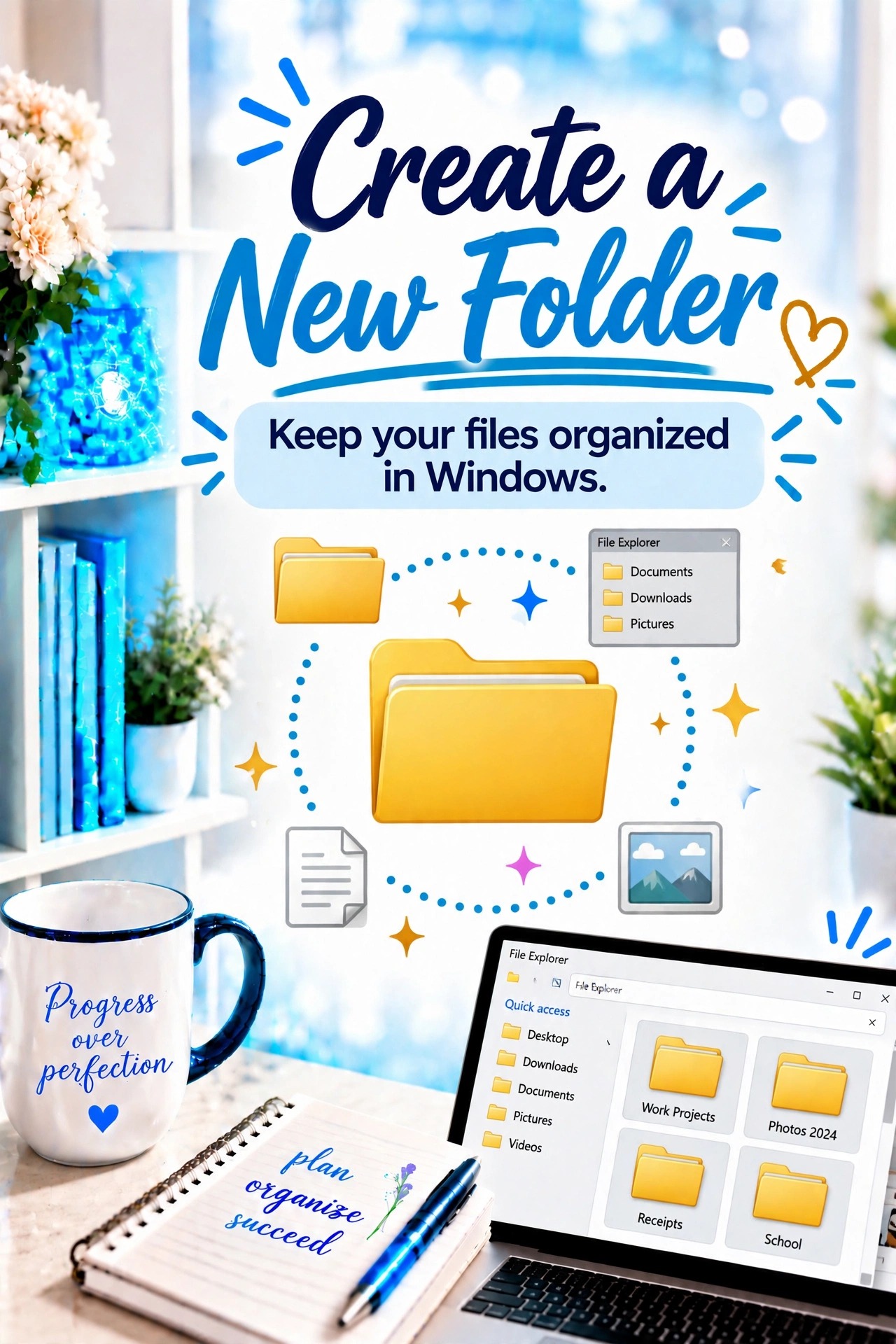
One of the easiest ways to make your computer less frustrating is to learn how to create and use folders.
And the good news is, creating a folder in Windows 11 only takes a few clicks.
You don’t need any special software, and you don’t have to be particularly tech-savvy.
In this tutorial, I’ll show you how to create a folder, name it, open it, and start using it to organize your files.
📺 Watch the video below
First, What Is a Folder on Your Computer?
Think about a filing cabinet.
You might have one folder for bills, another for insurance paperwork, and another for important household documents.
Computer folders work in a similar way.
A folder is a place where you can organize and store files.
A file might be a photo, document, spreadsheet, PDF, or another item you’ve saved on your computer.
A folder is what helps you group those files together.
For example, you might create folders named:
- Family Photos
- Household Documents
- Recipes
- Vacation Plans
- Business Records
You can also put folders inside other folders.
That’s called a subfolder.
For example, you might have a folder called Family Photos, with smaller folders inside it for different years.
But you don’t have to build an elaborate system today.
We’re just learning how to create one folder.
What Is File Explorer?
Before we create a folder, let’s talk about the tool we’ll use.
File Explorer is the Windows program that lets you browse files and folders on your computer.
Think of it as the place where you look through your digital filing cabinet.
File Explorer lets you open folders, find files, move things around, rename items, and create new folders.
In Windows 11, File Explorer usually has a yellow folder icon.
You may see that icon on your taskbar at the bottom of the screen.
If you don’t see it, that’s okay.
There’s another easy way to open File Explorer.
Step 1: Open File Explorer
On your Windows computer, press:
Windows key + E
The Windows key usually has a Windows logo on it.
Hold down that key and press the letter E.
File Explorer should open.
You can also click the File Explorer icon on your taskbar if it’s available.
Once File Explorer opens, you’ll see different places where your files may be stored.
These might include Documents, Downloads, Pictures, and other locations.
Depending on how your computer is set up, you may also see OneDrive folders.
Don’t worry if your screen looks a little different from someone else’s.
Windows can display different locations depending on your settings and how your computer is configured.
Step 2: Decide Where You Want Your New Folder
This is an important step that people sometimes skip.
Before you create a folder, decide where you want it to live.
For example:
Documents is often a useful place for documents, lists, and other files you want to keep.
Pictures is a natural place for photos and images.
Desktop is easy to see when you’re using your computer, although too many items on the Desktop can become cluttered.
For our example, let’s create a folder inside Documents.
In File Explorer, find and click Documents.
If Documents isn’t immediately visible, you may need to expand a section of the navigation pane or look under your user folders.
One thing to keep in mind: on some computers, Documents is connected to OneDrive. That means the folder’s actual storage location may be different from a computer that doesn’t use OneDrive.
You don’t need to solve that today. Just pay attention to the location you’re choosing.
Step 3: Create Your New Folder
Once you’ve opened Documents, look near the top of File Explorer for the New button.
Click New.
Then choose Folder.
A new folder should appear.
Windows will give it a temporary name, usually New folder.
The name should be highlighted so you can type your own.
And that’s it.
You’ve created a folder!
Now let’s give it a useful name.
Step 4: Name Your Folder
While the new folder name is highlighted, type:
Practice Folder
Press Enter.
Your new folder is now called Practice Folder.
Of course, you can choose a different name.
Maybe you want to create:
- Recipes
- Vacation 2026
- Important Documents
- Family Photos
- Craft Projects
The name doesn’t have to be fancy.
It just needs to help you recognize what’s inside.
Here’s something I’ve learned from years of working with technology:
A good organization system is one that helps you find things again.
Not one that looks impressive to someone else.
If you naturally think, “I would look for that in Recipes,” then Recipes is probably a good folder name.
Step 5: Open Your New Folder
Now let’s make sure you know how to get inside the folder you created.
Find Practice Folder in File Explorer.
Double-click it.
That means clicking the left mouse button twice quickly.
Your folder will open.
Right now, it will probably be empty.
That’s normal!
You haven’t put anything inside it yet.
You can use this folder to store related files as you create or move them.
When you want to go back to the previous folder, you can use the Back arrow near the upper-left area of File Explorer.
Another Way to Create a Folder: Right-Click
Once you’re comfortable with the first method, here’s another option.
Open the location where you want to create a folder.
Move your mouse pointer to an empty area inside File Explorer.
Click the right mouse button.
A menu will appear.
Choose New, then Folder.
Type your folder name and press Enter.
You now know two ways to create a folder.
Use whichever one feels easier.
You don’t have to use every shortcut just because it exists.
A Keyboard Shortcut for Creating Folders
If you like keyboard shortcuts, Windows also has one for creating a new folder.
Press:
Ctrl + Shift + N
Make sure you’re inside the File Explorer location where you want the new folder first.
Then hold down Ctrl and Shift, and press N.
Windows will create a new folder and let you type its name.
This can be a nice time-saver once you’ve practiced a little.
But if you’re more comfortable clicking New → Folder, keep doing that.
Both methods get the job done.
How Do You Rename a Folder Later?
What if you create a folder and then decide you don’t like the name?
No problem.
You can change it.
In File Explorer:
- Find the folder you want to rename.
- Right-click the folder.
- Choose Rename.
- Type the new name.
- Press Enter.
You can also select the folder and press F2 on your keyboard.
Just remember that renaming a folder changes its name, not the files inside it.
However, if other programs or shortcuts rely on that folder’s exact location or name, changing it could affect those connections.
For ordinary personal folders, renaming is usually straightforward.
How Do You Put Files Into a Folder?
Creating a folder is the first step.
Eventually, you’ll want to put files inside it.
There are several ways to do that.
One common method is to move a file using cut and paste.
For example:
- In File Explorer, find the file you want to move.
- Click the file once to select it.
- Press Ctrl + X to cut it.
- Open the destination folder.
- Press Ctrl + V to paste it.
The file will move to the new location.
If you want to keep the original file where it is and place a second copy in the folder, use Ctrl + C to copy instead of Ctrl + X.
We’ll explore organizing and moving files in more detail in another lesson.
For now, the important thing is understanding that folders give your files a place to live.
Should You Organize Folders by Date, Topic, or File Type?
Here’s where people sometimes make organizing their computers much more complicated than it needs to be.
There is no single perfect folder structure for everyone.
Some people organize by topic:
- Family
- Finances
- Recipes
- Travel
Others organize by project:
- Kitchen Remodel
- Family Reunion
- Holiday Planning
Some people prefer organizing certain files by type:
- Documents
- Presentations
- Spreadsheets
And some people use dates.
The best approach depends on how you think about your files.
Here’s the question I like to ask:
“If I needed this file six months from now, where would I look first?”
That’s often a better guide than trying to copy somebody else’s folder system.
You don’t have to reorganize your entire computer to start getting more organized.
Create one useful folder today.
Build from there.
What If You Can’t Find the Folder You Created?
First, don’t panic.
A common beginner mistake is creating a folder in a different location than intended.
For example, you might think you’re inside Documents when you’re actually inside Downloads.
Here are a few things to check.
Look at the Current Location
At the top of File Explorer, look for the address or breadcrumb area that shows where you are.
This can help you understand which folder you’re currently viewing.
Use File Explorer Search
You can search for your folder by name.
Navigate to a location you think contains the folder, or a broader location, and use File Explorer’s search box.
For example, search for:
Practice Folder
Remember that File Explorer searches within the location you’ve selected, so you may need to broaden the search if the folder doesn’t appear.
Check OneDrive
If your computer uses OneDrive to sync certain folders, your Documents or Desktop locations may be associated with OneDrive.
That doesn’t necessarily mean your folder is missing.
It may simply be stored in a synced location.
Check the Name
Maybe you called it Practice Files instead of Practice Folder.
Try searching for part of the name.
And if you accidentally created an empty practice folder somewhere you don’t want it, you can remove it after confirming there’s nothing important inside.
Do Folders Automatically Back Up Your Files?
No.
This is an important distinction.
Creating a folder helps organize your files. It does not automatically create a backup.
A folder on your computer is still subject to the same risks as other files on that device.
Some folders may be synced through services like OneDrive, but syncing and having a separate backup are not exactly the same thing.
We’ll cover file storage, syncing, and backups in other lessons.
For now, remember that folders are primarily about organization.
Your First Folder Practice Exercise
Let’s put everything together.
Here’s your assignment:
1. Open File Explorer using Windows + E.
2. Open your Documents folder.
3. Click New → Folder.
4. Name it Practice Folder.
5. Double-click to open it.
6. Use the Back arrow to return to Documents.
7. Find your Practice Folder again.
If you can do those seven things, you’ve learned a genuinely useful Windows skill.
And here’s an optional challenge:
Create a second folder inside Practice Folder.
Name it Photos.
Now you’ve created a folder inside another folder.
That’s a subfolder!
You don’t have to keep the practice folders forever. They’re just a safe way to learn.
Small Skills Build Real Tech Confidence
It’s easy to underestimate skills like creating a folder.
But knowing how to organize and find your files makes so many other computer tasks easier.
Downloading documents.
Saving photos.
Keeping business records.
Finding something you created months ago.
All of those become less frustrating when you understand how folders work.
So if you’ve never created a folder before, don’t dismiss this as a tiny accomplishment.
It’s another piece of the foundation.
And that’s exactly how we’re going to keep learning.
One skill at a time.
One small win at a time.
Technology doesn’t have to be scary. We’re starting at Chapter One. 💙