Technology is supposed to make life easier. And yet somehow it can also give us 47 tiny things to remember.
Where did I save that file? Did I answer that email? Where did that download go? What was that thing I copy and paste all the time? Is the file I need on my computer when I’m sitting somewhere with only my phone?
None of those things is particularly stressful by itself. But when you add them together, they create a lot of unnecessary mental clutter.
Over the years, I’ve learned that I don’t need a perfectly organized digital life. I just need a few good habits that let technology remember some things for me.
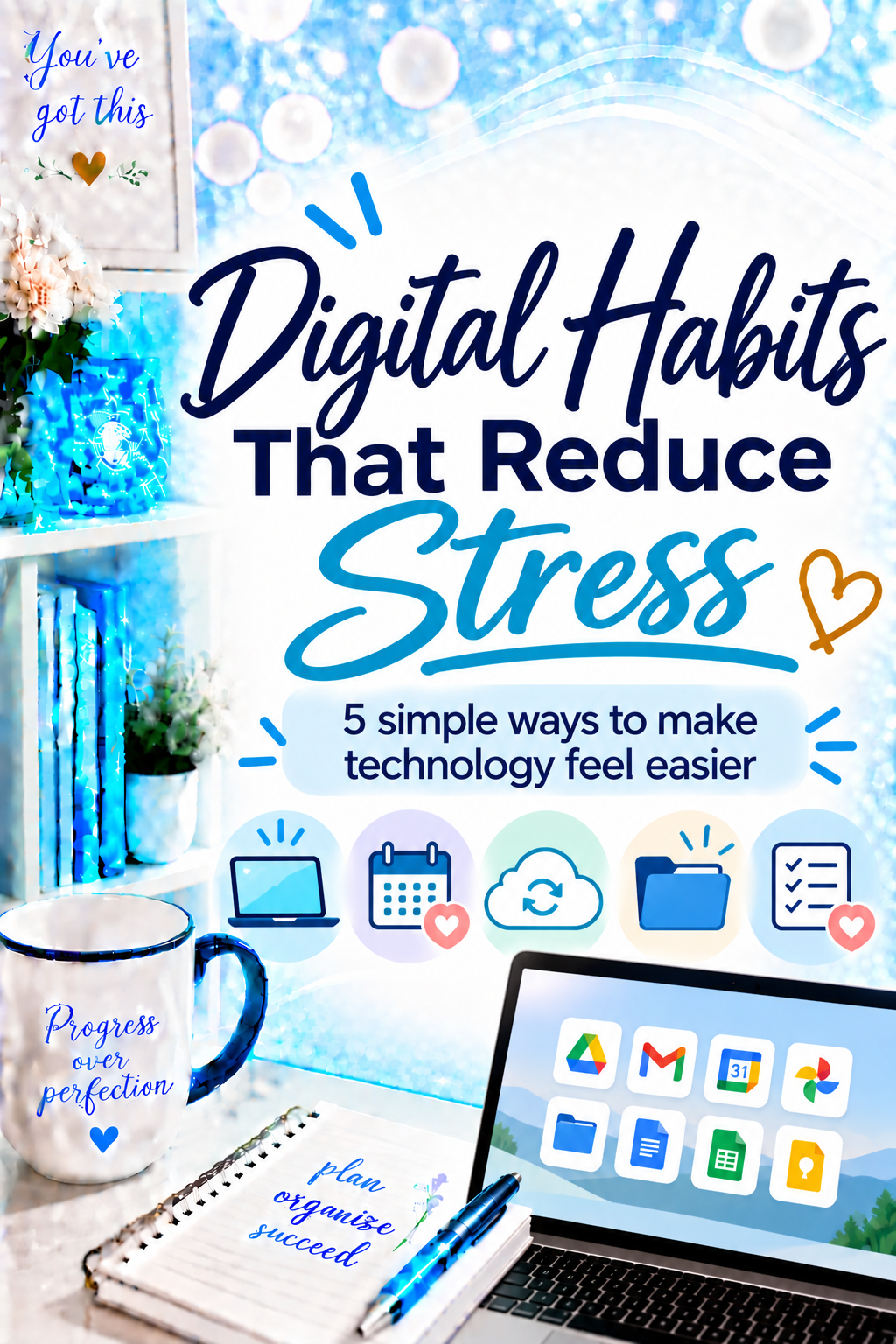
Here are five of my favorites.
📺 Watch the video below
1. Give Your Files Names That Future You Will Understand
I’m a big believer in asking one simple question when you save a file:
Will Future Me know what this is?
Because Book1.xlsx might make perfect sense while you’re actively working on that spreadsheet. Three months from now? Probably not so much.
The same goes for Document1.docx, Video1.mp4, and all their equally unhelpful relatives.
You don’t need an elaborate file-naming system. In fact, creating one that’s so complicated you have to remember seventeen rules before saving a file defeats the entire purpose.
Just give the file a descriptive name.
Instead of:
Book1.xlsx
Try:
Bookkeeping.xlsx
Instead of:
Document1.docx
Try:
Bible Study Notes.docx
A few extra seconds when you save something can eliminate a lot of searching later.
The goal isn’t perfect organization. The goal is recognition.
Future You has enough to do. Don’t make her open six files to figure out which one Past You meant. 😂
2. Stop Treating Your Downloads Folder Like Permanent Storage
I think of the Downloads folder like an airport baggage carousel.
Your suitcase arrives there, but you don’t leave it circling the carousel for the next eight months.
The Downloads folder should work the same way.
When I download something, I try to decide what needs to happen to it.
Do I need to keep it? Move it somewhere that makes sense.
Was it something I only needed temporarily? Delete it when I’m finished.
Is it something I haven’t dealt with yet? Fine—but eventually it needs a home or it needs to go.
Otherwise, the Downloads folder becomes a giant pile of PDFs, images, installation files, spreadsheets, and mysterious documents with names you no longer recognize.
Then when you actually need something, you’re searching through the digital equivalent of the kitchen junk drawer.
You don’t need to clean your Downloads folder every day. The useful habit is simply remembering:
Downloads is a stopping point, not a storage system.
3. Let Your Email Come Back When You Can Actually Deal With It
Sometimes an email arrives that you need to do something about—but right now isn’t the right time.
Maybe you need information you won’t have until Friday. Maybe you need to make a decision next week. Or maybe you simply don’t have time to deal with it today.
One option is to leave it sitting in your inbox and repeatedly think:
Don’t forget that email.
That’s exactly the kind of mental clutter I’m trying to eliminate.
If you use Gmail, Snooze lets you temporarily remove an email from your inbox and choose when you want it to return.
At the selected time, the email comes back to your inbox.
You’re essentially telling technology, “I don’t need to think about this right now. Bring it back when I do.”
That’s different from pretending the email doesn’t exist.
You’re making a decision about when you want to deal with it instead of asking your brain to keep reminding you that it’s there.
I’ve created a separate tutorial showing how Gmail Snooze works because once you know the feature exists, it’s incredibly simple to use.
4. Stop Retyping Information You Use All the Time
There are certain pieces of information we use repeatedly.
Maybe it’s a business description, a website address, a standard response, a set of brand colors, or something else you frequently copy and paste.
On Windows, Clipboard History can remember items you’ve copied, and you can even pin frequently used items so they remain available.
Press:
Windows + V
to open Clipboard History.
This is one of those little Windows features that many people don’t know exists.
Instead of finding the original information every time, copying it again, and then pasting it where you need it, you can keep frequently used information available in your Clipboard History.
I use this kind of feature because I don’t want to spend my time repeatedly doing something technology can already do for me.
One important exception: don’t use Clipboard History as a place to store sensitive information such as passwords, credit card numbers, or other private data.
Convenience is lovely. Giving sensitive information a permanent seat at the clipboard table? Not so much.
5. Save Important Files Somewhere That Can Sync Across Your Devices
This one has become a big part of how I work.
I might create something at my Windows computer and later want to access it from my phone.
If that file exists only on the computer’s local drive, I’m going to have a problem when I’m somewhere else holding my phone.
But if I’ve saved it in a location that syncs through a service such as OneDrive or Google Drive, I may be able to access the same file from another device.
That’s what syncing is designed to help with.
One important distinction: putting OneDrive or Google Drive on your computer doesn’t necessarily mean every file on your computer automatically syncs.
The file needs to be saved in a location that’s configured to sync.
That’s why one of my first troubleshooting questions when someone can’t find a file on another device is:
Where did you save it?
Once you understand where your synced files live, you can be much more intentional about what you put there.
For me, the benefit isn’t simply “cloud storage.”
It’s being able to get to what I need without having to remember which physical device has the file.
The Real Goal Isn’t Better Organization
Notice what these five habits have in common.
I’m not asking you to become an expert in Gmail, Windows, OneDrive, Google Drive, or file management.
I’m not asking you to spend a weekend reorganizing your entire computer.
And I am definitely not suggesting you build an elaborate digital productivity system with 42 folders, seven color codes, and a flowchart explaining where your grocery list goes.
We are not moving digital throw pillows.
Each of these habits solves a small, recurring problem:
Meaningful file names mean I don’t have to remember what’s inside every file.
Managing my Downloads folder means I don’t have to search through hundreds of random files.
Snoozing an email means I don’t have to keep reminding myself to deal with it later.
Clipboard History means I don’t have to keep finding and retyping the same information.
Syncing files means I don’t have to remember which device has the thing I need.
That’s the bigger lesson.
Let Technology Carry Some of the Mental Load
We talk a lot about technology saving time, but I think there’s another benefit that doesn’t get nearly as much attention.
Good technology habits can save mental energy.
Every tiny thing you’re trying to remember occupies a little bit of your attention.
The goal isn’t to automate your entire life or build the perfect digital system.
It’s to notice the places where you’re repeatedly thinking:
I need to remember this.
I need to find that again.
I do this every single time.
Those are clues.
There may be a simple feature, shortcut, or habit that can carry some of that load for you.
And you don’t need to tackle all five of these habits today.
Pick one.
Choose the one little digital frustration that keeps showing up in your day and make that easier first.
Then let Future You enjoy the fact that Present You finally did something about it.
That’s working smarter with technology.
Technology Made Simple. 💙