How many times a day do you go looking for the same programs on your computer?
You need Word, so you go find Word.
Later you need it again…so you go find Word again.
Tomorrow?
Same little scavenger hunt.
Here’s a tiny Windows habit that can eliminate some of that unnecessary clicking:
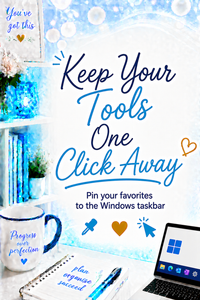
Pin the programs you use most often to your taskbar.
Your taskbar is the bar that typically runs along the bottom of your Windows screen, and it can become a handy home for the tools you use every day.
📺 Watch the video below
What Does “Pin to Taskbar” Mean?
When you open a program in Windows, you’ll usually see its icon appear on your taskbar while the program is running.
But when you close the program, that icon may disappear.
When you pin an app to your taskbar, you’re telling Windows:
Keep this shortcut here. I use it regularly.
Now the icon remains available even when the program isn’t running.
The next time you need it?
One click.
No searching through menus. No hunting around your desktop. No wondering where the program went.
How to Pin an App to Your Windows Taskbar
Find the application you want to keep handy.
Depending on how you’re accessing the app in Windows 11, you can use its available right-click options to choose Pin to taskbar.
Once it’s pinned, its icon will remain on your taskbar so you can quickly open it whenever you need it.
Think about the programs you use practically every day.
Maybe that’s:
- Microsoft Word
- Excel
- Outlook
- Your web browser
- File Explorer
- Teams
- Another program you use regularly for your business
Those are good candidates for your taskbar.
Put Your Apps in an Order That Makes Sense to You
You don’t have to leave your pinned apps wherever Windows happens to put them.
You can rearrange the icons on your taskbar and create an order that makes sense to your brain and your workflow.
Maybe your browser comes first.
Then Outlook.
Then Word and Excel.
There isn’t one magical correct arrangement.
The goal is to create a predictable place for the programs you use most so you don’t have to think about where they are.
And Please Unpin the Stuff You Never Use
Now for the other side of this tip. 😏
If your taskbar is already packed with icons you never click, adding more isn’t going to make your computer easier to use.
It’s just creating another digital junk drawer.
If there’s something pinned that you don’t use, right-click it and choose Unpin from taskbar.
You’re not deleting the program.
You’re simply removing its shortcut from your taskbar.
You can still find and open the application later if you need it.
Don’t Pin Everything
You knew this was coming, right? 😂
If pinning five frequently used programs saves time, that doesn’t mean pinning 47 programs will save even MORE time.
Your taskbar works best when it’s useful.
Think about the programs you genuinely use on a regular basis.
Those deserve prime real estate.
The program you opened twice in 2024?
Probably not. 😏
Tiny Changes Can Make Technology Easier
This isn’t a revolutionary Windows feature.
And that’s exactly why I like it.
Technology doesn’t always have to involve complicated automation or learning an entirely new program to make your life easier.
Sometimes it’s simply noticing:
“I do this same thing every single day. How can I make it easier?”
If you’re repeatedly searching for the same application, give it a permanent spot on your taskbar.
One less search.
A few fewer clicks.
A little less friction.
Repeat those kinds of improvements throughout your day, and they start adding up.
Your most-used technology shouldn’t require a scavenger hunt.
Put the tools you use most one click away. 💙